Overview
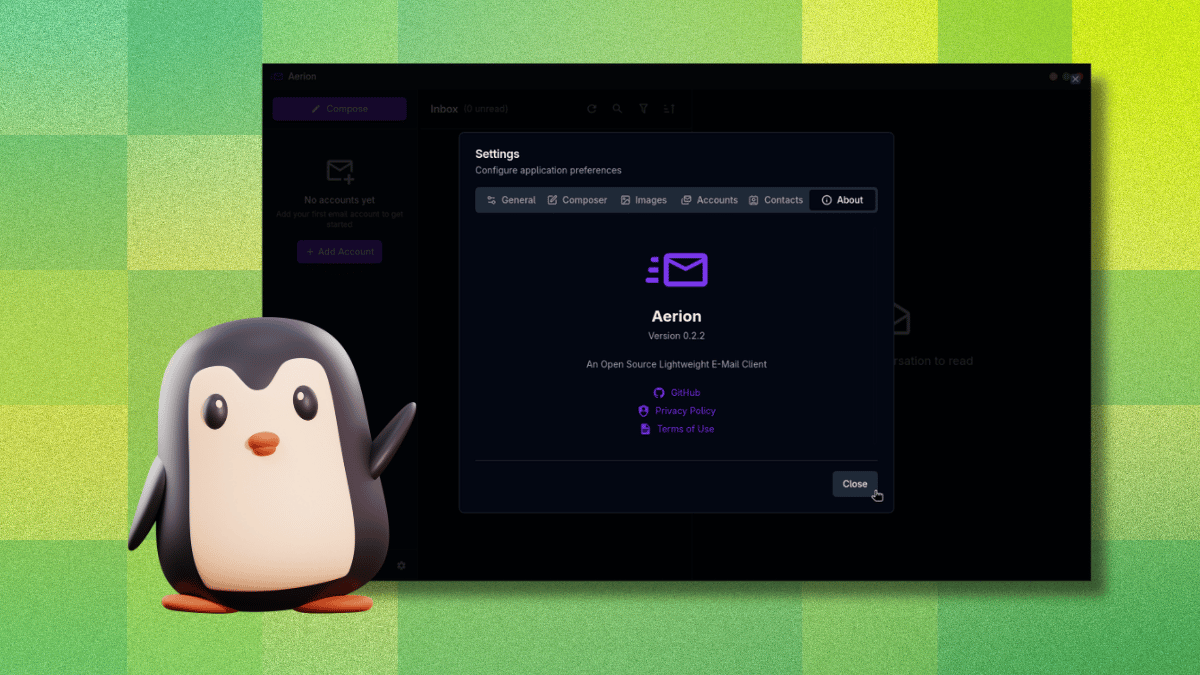
If you manage multiple email accounts daily, a dedicated desktop email client can streamline your workflow by consolidating all your messages into one application without needing browser tabs. Aerion is an open-source, lightweight email client designed for Linux users who value resource efficiency and a clean interface. Built with Wails and Svelte, it avoids the bloat of older solutions while offering modern features like conversation threading, a WYSIWYG editor, keyboard navigation with vim-style shortcuts, and support for multiple email providers. It also boasts a CASA Tier 2 certification (assessed by TAC Security under Google’s App Defense Alliance), meaning its codebase meets OWASP ASVS standards—a strong reassurance for handling your credentials. This guide will walk you through setting up Aerion, adding accounts, and avoiding common pitfalls.
Prerequisites
Before you begin, ensure you have the following:
- A Linux distribution (e.g., Ubuntu, Fedora, or Arch) – Aerion is primarily developed for Linux.
- An email account – Supported providers include Gmail, Microsoft 365/Outlook, Proton Mail (via the paywalled Proton Bridge), iCloud Mail, GMX Mail, and generic IMAP/SMTP setups. Yahoo, Fastmail, Zoho Mail, AOL Mail, and Mail.com are listed but untested.
- Basic terminal familiarity – You’ll use commands for installation (if not using a package manager GUI).
- Permissions to install software – Administrative rights (sudo) may be needed.
Step-by-Step Guide
1. Installing Aerion
Aerion can be installed via package managers or compiled from source. The recommended method is using a package manager for your distribution.
- Ubuntu/Debian: Add the official repository and install:
sudo add-apt-repository ppa:aerion/stable
sudo apt update
sudo apt install aerion- Fedora: Use COPR:
sudo dnf copr enable aerion/aerion
sudo dnf install aerion- Arch Linux: Install from the AUR:
yay -S aerionAlternatively, download the AppImage from the official website, make it executable, and run it directly.
2. Adding Your First Email Account
Once installed, launch Aerion. You’ll see a welcome screen prompting you to add an account. We’ll use Gmail as an example because it’s widely used and demonstrates OAuth authentication.
- Click “Add Email Account” – a dialog box appears.
- Select Gmail from the provider list (or choose “Other” for IMAP/SMTP).
- Enter your email address and click “Continue” – Aerion opens your default web browser to complete OAuth.
- In the browser, sign in to your Google account and grant the requested permissions (e.g., read, compose, send emails).
- After authorization, you’ll be redirected back to Aerion, which will display a success message. Your account’s emails will start downloading.
Important: Do not click outside the dialog box while it’s open. If you accidentally click elsewhere, the window closes without warning, discarding your progress. You’ll need to start over from step 1.
3. Navigating the Interface
Aerion’s interface is minimal and intuitive:
- Left pane: Lists your accounts and folders (Inbox, Sent, Drafts, etc.).
- Center pane: Displays the email list for the selected folder, with subject, sender, date, and a snippet.
- Right pane: Shows the content of a selected email. You can also compose new messages here.
- Top toolbar: Buttons for new message, reply, forward, archive, delete, and search.
Keyboard shortcuts are available, including vim-style navigation (e.g., j/k to move up/down, Enter to open, q to close). You can enable or customize these in Settings.

4. Composing and Managing Emails
To compose a new email:
- Click the “New Message” button or press Ctrl+N.
- In the composer, enter recipients, subject, and body. The editor is WYSIWYG (powered by TipTap) – you can format text, add links, and insert images.
- Attach files by clicking the paperclip icon or dragging and dropping files into the composer.
- Click “Send” or press Ctrl+Enter.
For conversation threading, emails with the same subject are grouped. Click the thread to expand individual messages.
5. Customizing Settings
Access Settings from the hamburger menu (top-left) or by pressing Ctrl+,.
- Accounts: Add/remove accounts, change sync frequency, or set signature.
- Themes: Choose from multiple color themes (light/dark variants).
- Keyboard shortcuts: View and customize keybindings.
- Notifications: Toggle desktop notifications for new emails.
Contact sync is available via CardDAV, Google, or Microsoft – enable it in the Accounts section.
Common Mistakes and Troubleshooting
- Accidentally closing the add-account dialog: As mentioned, clicking outside the dialog discards progress. Always stay focused on the dialog until it’s closed.
- Emails not syncing: Ensure your account credentials are correct and that you’ve granted the necessary OAuth permissions. For IMAP/SMTP accounts, double-check server settings (e.g.,
imap.gmail.comport 993 with SSL). - App crashes or freezes: Since Aerion is pre-release software, crashes may occur. Try restarting the app. If persistent, report bugs on the GitHub issues page.
- Performance issues with many accounts: Disable less-needed accounts temporarily. Aerion is designed to be efficient, but loading thousands of emails may slow down initial sync.
- Proton Mail integration: Requires the paid Proton Bridge – this is a limitation of Proton itself, not Aerion.
Summary
Aerion is a promising open-source desktop email client that prioritizes resource efficiency and security. By following this guide, you can install it on Linux, add your accounts (with careful attention to the dialog bug), and start managing your emails with a clean, keyboard-friendly interface. Remember it’s pre-release software, so occasional hiccups are expected, but its certification and active development make it a solid choice for those looking to consolidate their inbox without bloated alternatives.